

Cleanup Microsoft Windows
This blog post provides some guidance for cleaning up Microsoft Windows. Add or Remove Programs Use Windows Add or remove programs to remove all programs that you do not consciously use. Turn Windows Features on or off Use Turn windows features on or off to remove unnecessary functionality. Update Windows, Drivers, and Programs Use Windows…


Migrate Email Hosting to Proton
This blog post provides some guidance for migrating email hosting on personal domains to Proton, such as to migrate from Microsoft or google. In 2025, I am trying to reduce my reliance on big tech, and encouraging others to do the same. Planning Incorrect configuration could result in lost email. Understand the entire process before…
Configure Fedora Linux Bash Shell and Terminal
This blog post provides some guidance for configuring the bash shell and Christian Hergert’s Terminal 47.10 that come with Fedora Linux. Configuring the Terminal software seems relatively straightforward, and also provides a method to learn and set keyboard shortcuts. Press Super (Windows) and type term to find Terminal, then right-click and select Preferences. Alternatively, while…
Use rclone to Mount Proton Drive in Fedora Linux
This blog post describes one to mount an entire Proton Drive onto a Fedora Linux file system. A better alternative might be to create a directory on the Proton Drive, and to share only that directory. First, create a directory to represent the Proton Drive. Change group to the group of a user that will…

Quick Fedora Orientation
You can use the mouse to interact with the GNOME environment that Fedora provides, starting with the icons at the top left and top right. You can also use keyboard shortcuts. At least once, a desktop machine did not seem to wake from sleep, so I disabled automatic sleep. When I switch from Fedora back…

Installing Fedora Linux
This blog post is a continuation of: Installation Process The easiest process to install Fedora appears to be as follows: Partitions A previous post provided some guidance regarding partitions: USB Drive Use the Fedora Media Writer exe to write the installation software to the USB drive. This will install mediawriter.exe to something like C:\Program Files…

Preparing to Install Linux
This blog post is a continuation of: Once we have an overall approach – experiment with dual-booting Windows and Fedora on a secondary machine – we need to prepare a few details before we can install Linux. Disks, Partitions, Boot Partitions, and Boot Loaders The operating system, whether Windows or Linux, provides an abstraction of…

Planning to Move Away from Big Tech in 2025
In 2025, to the extent possible, I will move away from major software, hosting, social media, and cloud platforms. My context is that of a developer familiar with Windows, Windows Subsystem for Linux, Visual Studio Code, and Microsoft Office including OneDrive. I will use open source software, local devices, and Proton to replace existing paid…
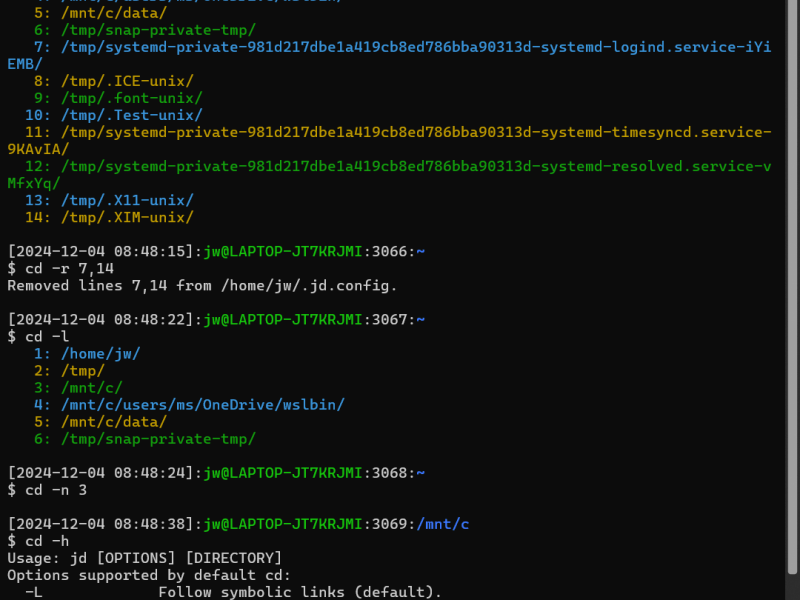
WSL Bash CD Enhancement to Track Directories Across Sessions
This blog post introduces the jd function that enhances the cd (change directory) command for Bash shells under WSL to make it easier to access past working directories without the need to remember or type their paths, as well as to allow typing and pasting Windows paths. You can use the jd function just as…
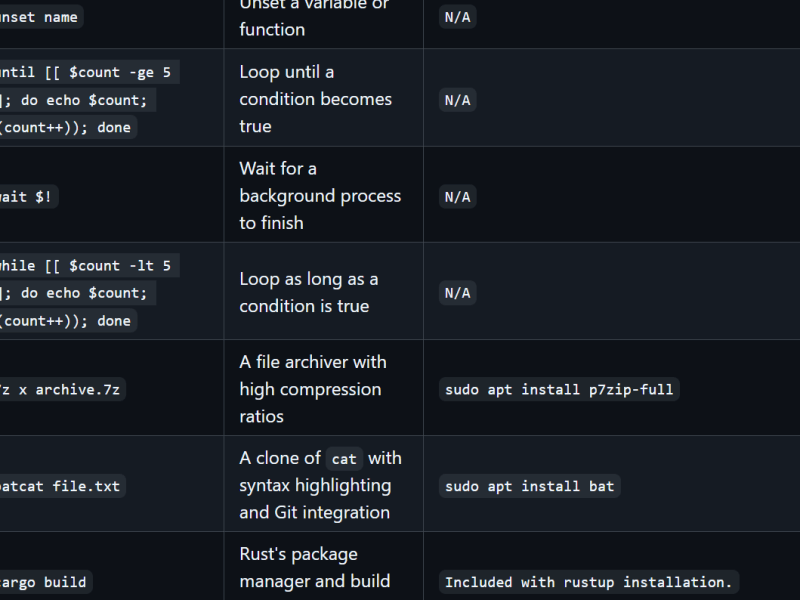
WSL/Bash/Linux Cheat Sheet
ChatGPT wrote a cheat sheet of commands available in Bash under WSL (Linux). You should be able to generate cheat sheets about anything, but if there is much content, you need to break the process into phases. Step 1: Create Lists of Commands Step 2: Create Markdown Tables Step 3: Merge and Sort Step 4:…

WSL Bash Aliases to Change Windows Display Orientation
This blog post provides two aliases to change the Windows primary display orientation. First, download display64.exe: Then, define some aliases to use it, typically in .bashrc (see https://wslguy.net/2021/02/13/wsl-configure-bash-shell-initialization):
Using Windows Command Line Tool Output in Bash under WSL
This blog post explains how you can use the output of Windows Command Prompt commands in Bash scripts under WSL. In Bash under WSL, I want to use the output of the tree command to list the contents of a WSL directory. Tree is unusual in a few ways: it is part of cmd.exe, not…
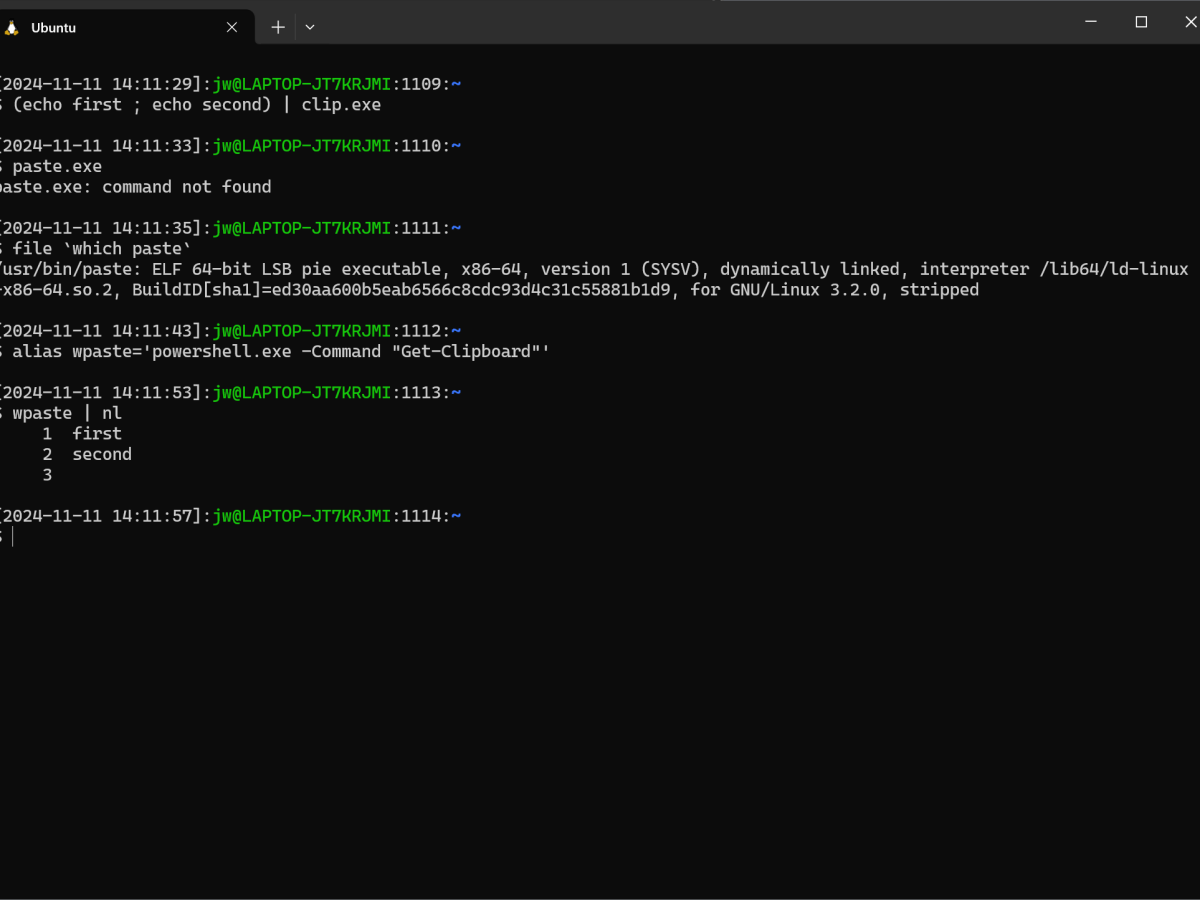
Use PowerShell To Paste From the Windows Clipboard to the WSL Bash Command Line
This blog post explains how you can use PowerShell to paste text from the Windows clipboard to the WSL Bash command line. Windows provides clip.exe, which can copy stdoud to the Windows clipboard. Windows does not provide paste.exe, which logically would paste from the Windows clipboard to stdin. We can use the following PowerShell as…
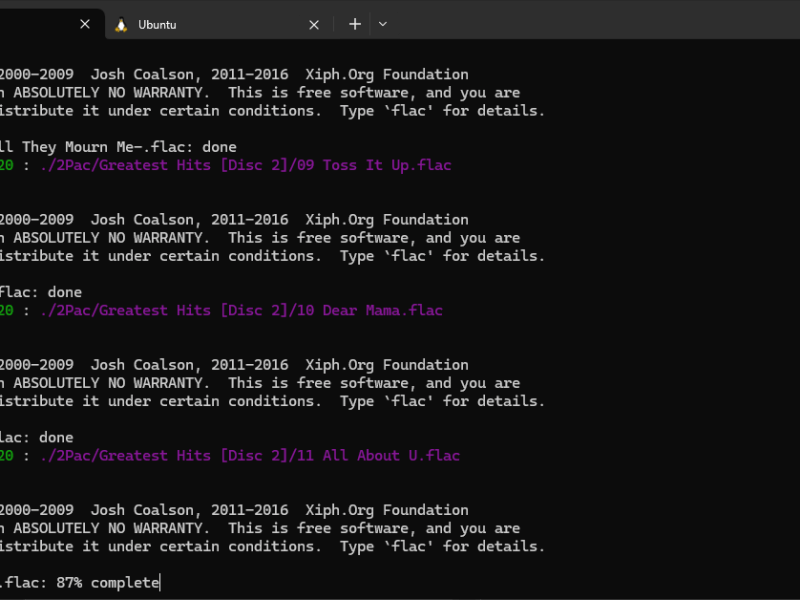
Notes from Ripping CDs with WSL in 2024
This blog post describes my experiences ripping CDs to .flac files in late 2024. I had a relatively large collection of music compact discs (CDs) before I inherited at least three times as much from some relatives. I decided to digitize it to .flac (lossless but large) and to convert those files to .mp3 when…
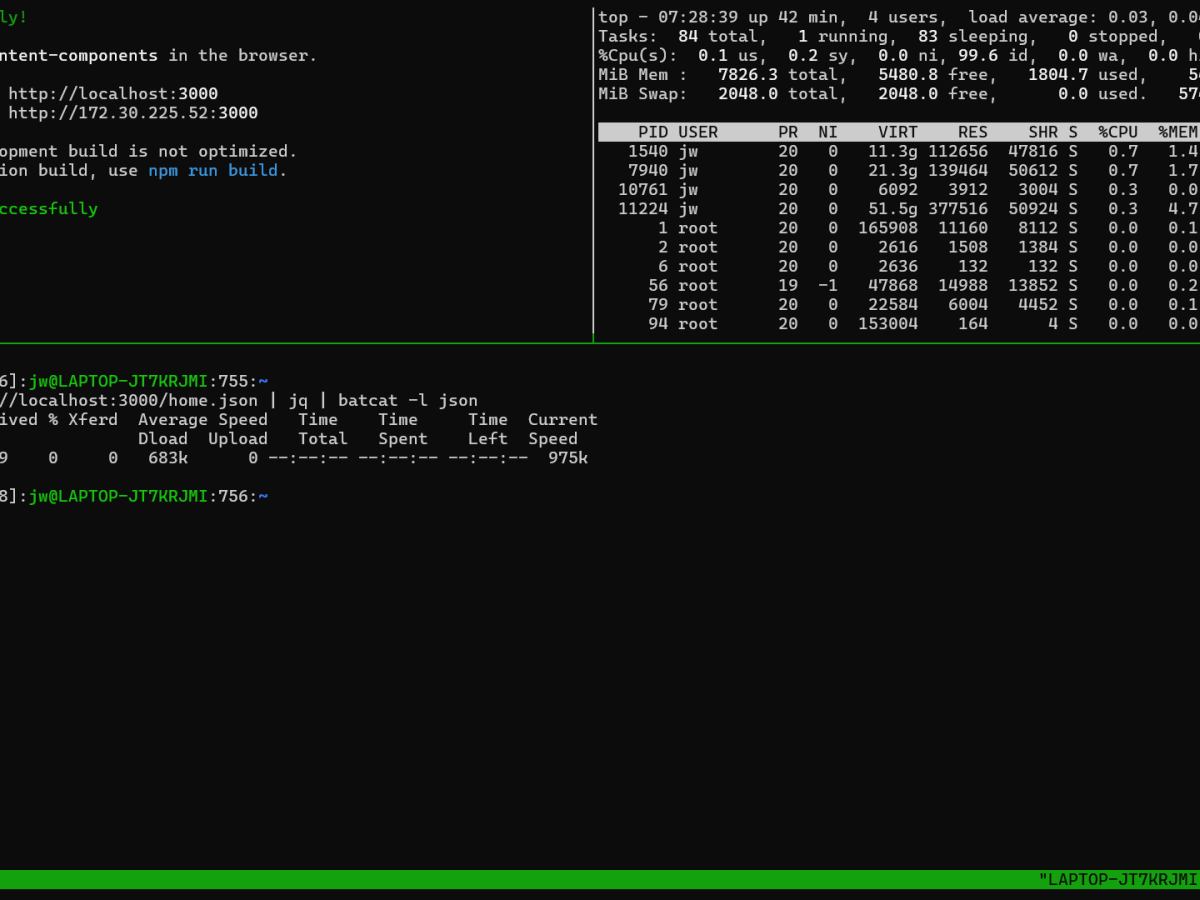
Quick Intro to the tmux Terminal Multiplexer
This blog post introduces tmux, which is a terminal multiplexer for multiple command line shells in different windowpanes within a single operating system window. The video associated with this post demonstrates monitoring the output from a server application in one pane and resource utilization in another pane while allowing the developer to invoke commands in…

Use OneDrive (or otherwise) to Share WSL Bash Shell Command History Between Accounts and Machines
This blog post explains how you can use OneDrive to share Bash shell history between different accounts and machines. Sharing OneDrive including bin and my personal Bash configuration to multiple Windows machines with WSL has been highly valuable for me. For example, I use a shared file on OneDrive to configure Bash for all accounts…
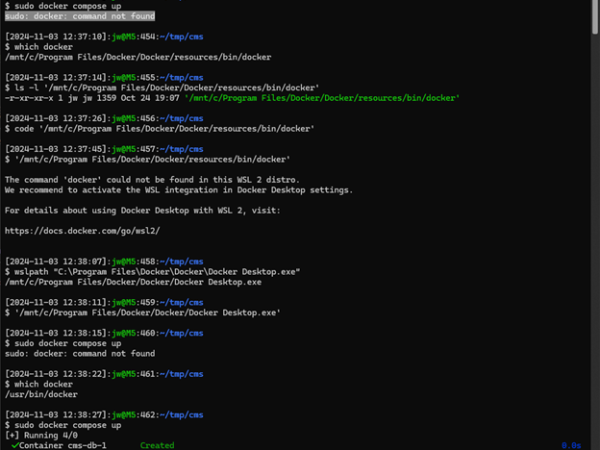
One Explanation for docker : command not found
This blog post provides one explanation for the “docker : command not found” error. Specifically, you may need to start Docker Desktop. If you run a command such as the following: And receive the following error: The issue may be that you need to start Docker Desktop. The symptoms are a little strange, because the…
![Add a Shortcut to My Computer/This PC to the Taskbar in Windows [10]](https://wslguy.net/wp-content/uploads/2024/11/me-computer.png?w=200&h=150&crop=1)
Add a Shortcut to My Computer/This PC to the Taskbar in Windows [10]
I like to open Windows File System Explorer with “This PC” (the artist formerly known as both “My Computer” and “Computer”) selected, which gives me convenient access to my devices. In at least Windows 10, you can follow these instructions to place a shortcut to “My Computer” on the Windows Taskbar. On the desktop, create…
Manually Invoking Web Services with Very Short-Lived Tokens
This blog post explains one way that you can use the curl command to invoke Webservice APIs where those services depend on very short-lived tokens that you must retrieve from another service. I must pass an Authentication token to services: To get the token, I have to pass a username and password to a different…

Mount Remote Apple File System from Windows Subsystem for Linux (WSL)
I accidentally posted this to the wrong blog! https://deliverystack.net/2024/10/21/mount-remote-apple-file-system-from-windows-subsystem-for-linux-wsl/ Here it is again. This blog post provides shortcuts to mount a remote Apple file system under Windows Subsystem for Linux. You can use this technique to access Apple file systems from Windows Subsystem for Linux and Windows itself. You can use Airdrop to copy images…
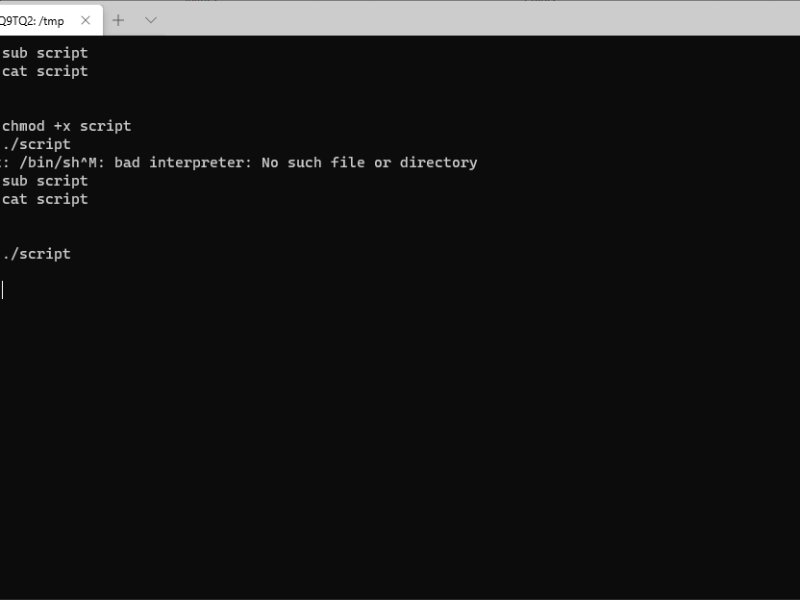
WSL: -bash: /bin/sh^M: bad interpreter: No such file or directory
Replicated with enhancements from the following with hopes of improving findability and through search engines: TL;DR: Windows text files use \r\n (CRLF: carriage return, linefeed) for line termination; Unix text files use just \n. Edit the file and change the line terminators. Using Windows Subsystem for Linux (WSL), you may encounter the following error if…

Quickly Change Screen Resolution from the WSL Command Line
You can use the free QRes command line tool to change the screen resolution from a Windows Subsystem for Linux bash shell. I use this technique to capture screen shots at lower resolutions and then revert to my normal working resolution. First, download the software and put QRes.exe somewhere in your $PATH: Next, run the…
batcat: Syntax Highlighting Replacement for cat and more Commands
My time writing for another blog about rust led me to the batcat command, which provides a code syntax-highlighting replacement for the Unix cat and more commands, written in rust. bat — command-line utility in Rust // Lib.rs sudo apt install bat batcat lib.rs batcat wince It is not helpful in this example, but there…
Linux Shell Commands to Update Windows Subsystem for Linux
This blog post provides information about Linux shell commands that we can use to update Windows Subsystem for Linux and Linux itself. We can use the wsl.exe command with the –update argument to update WSL, but we need to use an elevated command shell. For this we can use the runas.exe command, but we have…
Introducing rustapopoulos.com, another blog about programming with rust.
I started a separate blog about programming with rust. rustapopoulos.com – Yet another blog about programming with rust
Access Windows “God” Mode from Windows Subsystem for Linux
You can use the technique in the following script to access Windows “God” mode from a bash shell script running under Windows Subsystem for Linux (WSL). There may be a better way, preferably a command line argument to explorer.exe that does not depend on the existence of a file system directory for this purpose. Update:…
Open Remote (Github) Code Repositories in Visual Studio Code without Cloning
Microsoft’s github provides the Remote Repositories extension for the Microsoft Visual Code editor to open remote code repositories such as from Github without cloning those projects to your local system. First, I highly recommend that you use Windows Subsystem for Linux (WSL), with or without Visual Studio Code, but especially if you code in Visual…
Access WSL File Systems Read-Only from a Browser
In Windows, I opened an .html file in the Windows Subsystem for Linux (WSL) /tmp directory (corresponding to \\wsl.localhost\Ubuntu-20.04\tmp on Windows) and found something unexpected in the address bar: file://wsl.localhost/Ubuntu-20.04/ followed by the Unix file system path to the file. Apparently, wsl.localhost works like a webserver with directory browsing enabled, from which you can access…
One Way to Run New Windows Applications from the Command Line
One of the annoying things about many modern Windows applications is that it is not easy to locate and invoke their executables. For example, how do you launch Windows Sound/Voice Recorder from the command line in Windows 10? Here is one way to find out how. You can run explorer.exe shell:AppsFolder to open the Applications…
Investigate Commands in WSL Bash Shells
This blog post contains guidance for gathering information about commands available in bash shells, specifically under Windows Subsystem for Linux (WSL). TLDR: Use type, which, and file to determine whether a command is an alias or a function or where it is and its type. To my knowledge, you can invoke four types of commands…
Build and Run Windows and Linux Binaries of Rust Programs from Bash with WSL
This blog post explains one way to build and run both Windows and Linux binaries of a rust program from a single process running under Windows Subsystem for Linux (WSL). Update 21.June.2021: Current code at wink/wince at main · deliverystack/wink (github.com) From a bash process under WSL, you can use a shell script to build…
Windows 21390.1 First Impressions
This short blog post describes my first impressions of Windows 21390.1 available to Windows Insiders as of June 2021. The upgrade took an hour or more, possibly because I walked away and did not respond immediately when it powered down while rebooting or when it needed a password. I notice that Windows has again reset…
My Initial Impressions of the Rust Programming Language
This blog post presents my initial reactions after a few days working with the Rust programming language. Of course, anyone using a programming language should read the book (https://doc.rust-lang.org/stable/book/). Some people in the rust community may push on this pretty hard. I like to read books, but I do not like to read online, and…
Rust: cannot be used to concatenate two `&str` strings/error[E0369]: cannot add `String` to `&str`
I have to be honest that I cannot easily understand or explain something as simple as string processing in rust, but I have figured out how to work around some of the errors I get from the compiler. I think that Rust: error[E0369]: cannot add `String` to `&str` is likely one of the first that…
Windows Subsystem for Linux Makes Computing Fun Again
Maybe I am a bit unusual for preferring the console and maybe I am a bit jaded from decades with Windows, but I think that almost anyone could be more productive by reducing their mousing and typing with a little knowledge of keyboard shortcuts and how to invoke commands from a shell. When I was…
Konabos Konaverse Podcast with wslguy.net Author John West
My friend Akshay at @Konabos Consulting invited me to join him in an episode of his #Konaverse podcast series. We did not intend to talk about technology, and I don’t think I even mentioned anything relevant to this blog. Hearing our conversation might help readers get to know a little about me as a person.…
Rust: Beware Parentheses on If Conditionals
Assuming that the three conditions represent Booleans, I noticed that code based on this rust would compile, where this would be a syntax error in C#. In rust, the if statement does not require grouping conditions within parentheses. Without noting parentheses placement carefully, I believe that, at least for developers familiar with languages where if…
Rust Command Line Tool to Access Windows Features and Commands
My first attempt at a rust program is the winc (pronounced wink) or wince (Windows Command Entry) command line tool that simplifies access to common Windows features and programs. Beware that this morning I didn’t know the first thing about programming with rust; I only knew how to install it, as I had noted in…
View Windows Process Information from Windows Subsystem for Linux
This blog post explains how a Bash shell script running under Windows Subsystem for Linux you can determine whether a process is running. The Linux ps command can only see processes invoked by WSL. The Windows tasklist.exe command lists all Windows processes. In WSL Bash shells running under Windows Terminal, I use the following function…
My Current [WSL] [Windows Terminal] Bash Shell Prompt
This blog post describes how I define the text prompt me to enter a command in the Bash shell using Windows Subsystem for Linux with Windows Terminal. This prompt is similar to the default in that it indicates the date and time that the previous command completed, username@hostname, and the current working directory path, but…
Windows Terminal Bash Shell: Open New Tab in Same Directory
When you are using a Windows Subsystem for Linux Bash shell in Windows Terminal, you can use the techniques described in this blog post to open a new tab to the current directory. In Windows Terminal, you can use keyboard shortcuts such as Ctrl+Shift+1 to open new tabs using the various installed and configured shells.…
Use Bash Shell History to Combine Paths from cd Commands
This blog post explains how you can use Bash shell command history to combine sequences of cd commands that take you to a deep path. 4.Dec.2024: This is probably a better solution: I often use multiple cd commands to navigate to a directory. cd /mnt/c/temp/slncd HeadlessArchitectcd HeadlessArchitect.Website If I want to go back one cd,…
Rust for Windows (Subsystem for Linux)
This blog post explains how to install and use the Rust programming language under Windows and Windows Subsystem for Linux (WSL). Take your first steps with Rust – Learn | Microsoft Docs Microsoft Previews ‘Rust for Windows’ – Slashdot Rust for Windows, and the *windows* crate | Microsoft Docs You can get the Windows Rust…
Windows Subsystem for Linux: Use Functions to Operate Outlook
You can invoke Microsoft Outlook with command line switches to perform specific operations such as to compose an email and attach a file. In Windows Subsystem for Linux, you can define a variable to store the location of the outlook executable and aliases or functions to call it. Functions seem to make it easier for…
WSL: Run SysInternals Utilities without Installing Them
This short blog post explains how you can use SysInternals Live to run its utilities from Windows and Windows Subsystem for Linux shells without explicitly downloading or installing them. In a Windows shell , you can invoke SysInternals Live utilities such as: \\live.sysinternals.com\tools\handle You can use cmd.exe /c to invoke SysInternals Live utilities from a…
Windows 10 Keyboard Shortcuts to Capture Screen Video
This short blog post explains how you can use keyboard shortcuts and the Games Bar of Windows 10 to capture video of your screen in Windows 10 without any additional software. You can press Windows+Alt+R to start or stop Recording video of your screen. While recording, you can press Windows+Alt+M to enable or disable your…
WSL: Execute a Command in a New Window and Close When Complete
This blog post describes a technique that you can use to open a new window to run a Windows Subsystem for Linux (WSL) command and close that window automatically afterwards. You can use a similar technique for Windows command lines. If you do not already have a WSL shell window open, you can open a…

Clean Up Bash History at Shell Startup
This blog post describes a simple technique that you can use to clean your Bash shell command history every time that you start a Bash shell. I use this with Windows Subsystem for Linux (WSL). 4.Dec.2024: Updated code and complete history management here: To simplify repeating complex commands between sessions, the Bash shell records the…
A Whole New Class of “Office” Keyboard Shortcuts
I accidentally discovered a new type of keyboard shortcut that you can use in Microsoft Office. I have not noticed any, but apparently, some new keyboards come with an “Office” key. Luckily, the Office key is equivalent to the handy (pun intended) Ctrl+Alt+Shift+Win, which I think we can call mash. I am not sure if…
Opening Windows Files from Command, Power, and WSL Shells
This blog post explains how you can open Windows files from the command line by specifying only the name of the file. You can open the file by name from a Windows command shell or PowerShell or you can invoke cmd.exe to open the file from a Windows Subsystem for Linux (WSL) shell. In a…
Clipping URLs in Microsoft Edge
This blog post presents suggestions using the Windows clipboard and keyboard shortcuts for working with URLs in the Microsoft Edge browser on Windows, specifically to copy the address of the current page to the clipboard and to load the URL in the clipboard into the browser. Implementation details may differ for other browsers and operating…
Using Windows without the Taskbar
This blog post provides suggestions for reducing reliance on the taskbar in Microsoft Windows. The Microsoft Windows user interface seems to encourage use of the mouse, but I prefer the keyboard. While there are specific functions for which the mouse is optimal, in addition to causing physical discomfort and even the potential for injury, moving…
[Windows/Office] Keyboard Shortcuts Desktop Background
I started a spreadsheet to list keyboard shortcuts for Windows 10 including the Edge Browser, Windows Terminal, and Microsoft Office. I use the content to generate an image that I use as a desktop background to help me learn and remember keyboard shortcuts. I do not know how to make images so I do this…
Windows 10 Virtual Desktop Keyboard Shortcuts
This blog post explains some of the virtual desktop features that Windows 10 includes. Virtual desktops function like multiple desktops. You might have one virtual development that you for browsers windows and applications that you use for communications, one Windows Subsystem for Linux shell in full screen mode, one for a fullscreen remote desktop session…
Windows Subsystem for Linux Cheat Sheet of Cheet Sheets
This blog post intends to list and provide cheat sheets for common information needs while working with Windows and especially Windows Subsystem for Linux (WSL). Optimally, this information could eventually appear in a cheat sheet could work as a Windows or Windows Terminal desktop background. If you know of additional resources to include, please comment…
WSL Commands to Access Windows Resources
This blog post describes Windows Subsystem for Linux (WSL) tools that retrieve variables from Windows and convert between Windows and Unix file system paths. I typed wsl and pressed tab twice on an empty line in a shell and got a list of commands that start with wsl. The wslupath and wslvar commands are useful…
Using DeskPins to Make a WSL Window Appear Above Others
Whenever I use Windows, I always run at least one Windows Subsystem for Linux (WSL) Bash shell in Windows Terminal. With multiple monitors, I can run Windows Terminal using one entire screen. On a single screen, Windows Terminal competes for the screen with all other applications and windows itself. I use DeskPins to pin a…
WSL: Pipe Output to the Windows Clipboard
This blog post explains how you can pipe output to the Windows clipboard under Windows Subsystem for Linux (WSL). This is a repost of https://www.linkedin.com/pulse/wsl-write-shell-stream-windows-clipboard-john-west/. You can use the clip.exe command to stream text from a shell command to the Windows clipboard. I use this technique in Windows Terminal with Windows Subsystem for Linux (WSL).…
Windows Subsystem for Linux (WSL) and Windows File Systems
This blog post explains how you can access different types of file systems from Windows Subsystem for Linux (WSL). This is a repost of https://www.linkedin.com/pulse/wsl-windows-file-systems-john-west/ In Windows Subsystem for Linux shells, you can access the Windows C:\ drive as /mnt/c, and you can use the wslpath command to convert between Windows and Linux path formats.…
Windows Subsystem for Linux (WSL) Daemons Including Cron
This blog post contains information about using Linux daemons (background processes) under Windows Subsystem for Linux (WSL). This is a repost of https://www.linkedin.com/pulse/wsl-linux-daemons-including-cron-john-west/. An example of using daemons involves cron and crontab, which let users configure the system to run programs on a schedule. The cron command is a daemon that starts on system initialization…
WSL: Configure Bash Shell Initialization
This blog post describes how you can configure Windows Subsystem for Linux (WSL) to invoke scripts that set environment variables, define aliases, call commands, and generate output when you start a Bash shell. When you start a Bash shell, the system sources the .profile file if it exists in the home directory of the current…
Use OneDrive to Share WSL Commands Between Accounts and Machines
This blog post explains how to make commands available easily to multiple Windows accounts and Windows Subsystem for Linux (WSL) accounts on multiple machines that share access to a common OneDrive. Update March 2025: I now use proton: If you use commands that are not availble to WSL, such as if you download command line…
WSL: Unable to Access OneDrive Personal Vault
The OneDrive Personal Vault stores files more securely than OneDrive itself. I have been unable to access the Personal Vault on OneDrive from the Windows Subsystem for Linux (WSL) Bash shells. When the vault is closed, I see a file named ‘Personal Vault.lnk’ in my WSL home directory; when the vault is unlocked I also…
Microsoft Edge Browser Configuration and Use
This blog post contains suggestions for configuring and using the Microsoft Edge web browser on Windows systems, including keyboard shortcuts. Edge is arguably the most secure browser available for Windows, though likely not supporting privacy as well as others. I have heard that Edge automatically includes AdBlock. I have written notes about Edge in various…
Launch Windows Features from WSL Shells
This blog post explains one technique that you can use in Windows Subsystem for Linux (WSL) to launch Windows features supported by the Windows Run dialog and the Windows console that WSL shells cannot launch by default. The Windows Run dialog and the Windows console (cmd.exe) can launch Windows components that WSL shells apparently cannot.…
Introducing the wslguy (Author)
I am John West, and I am the author of the wslguy blog. I have been reading relevant material and programming computers for more than 35 years. I started using variants of Unix and Linux in the late 90s, especially as servers. I have used Sun, SGI, and Linux workstations, but for my personal machine,…
Introducing the wslguy.net Blog
This blog intends to help readers have safer, faster, more productive, and more enjoyable experiences using Microsoft Windows 10 with Windows Subsystem for Linux (WSL), the Microsoft Edge browser, Microsoft Office, and Microsoft Visual Studio. This blog may assist Windows users in learning and eventually migrating to Linux. Whenever possible, this blog will explain how…
 wslguy.net